Launch anything.
Right where you are.
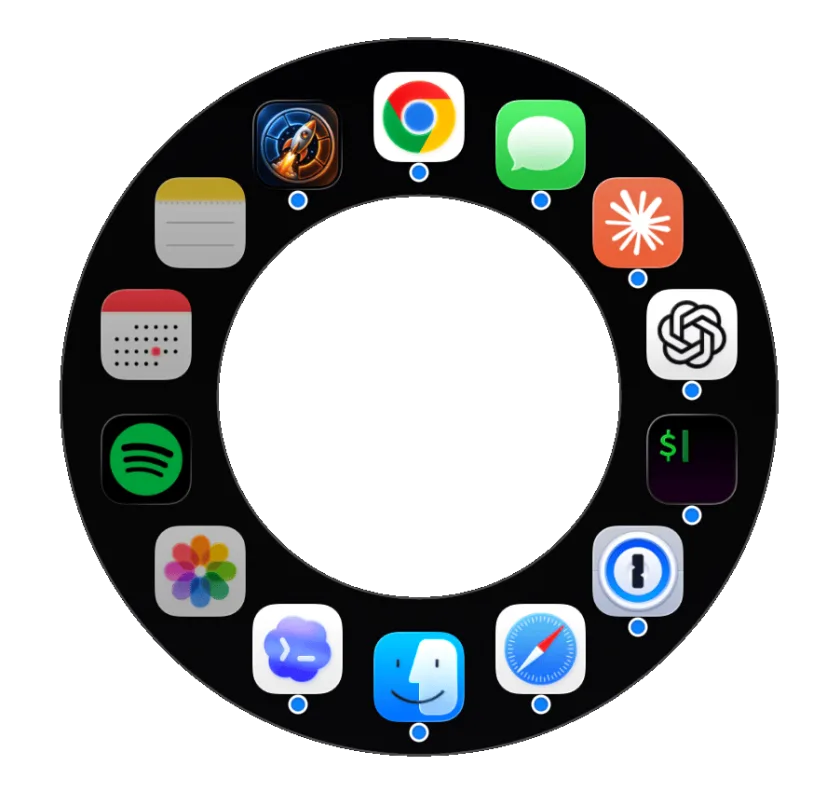
Hold ⌃⌥ and a ring of your apps blooms open right at your cursor. Hover to select, click to launch. No search bar hunting. No window switching.
Requires macOS 14 Sonoma or later · Apple Silicon · 100% native Swift · Signed & notarized by Apple
brew trust --cask marcvig/tap/orbit-launcher
brew install --cask marcvig/tap/orbit-launcher
Features
Everything you need.
Nothing you don't.
Hold to open, click or type to launch
Hold your hotkey and the ring appears at your cursor. Click the highlighted app or press Return — it launches. Or type to filter all installed apps.
Instant search, your way
Start typing and Orbit filters your ring instantly — or flip on "Search all apps" to reach everything installed. Type the start of any word — `vis cod` matches Visual Studio Code.
Pinned apps
Pin your most-used apps to fixed positions in the ring so they're always exactly where you expect them. Drag to set the clockwise order.
Running-app indicator
A dot beneath each running app lets you see what's open at a glance. Non-running apps are gently dimmed. Dot color is customizable in Theme settings — or turn it off entirely.
Recent-app fill
Empty ring slots automatically fill with your recently used apps — system-wide, on by default. You always have a useful ring without any manual setup.
Six built-in themes
Choose from Orbit Classic, Midnight Cyan, Graphite Ember, Forest Signal, Plum Neon, or Glass Graphite — or dial in your own colors and opacity.
Fully customizable ring
Adjust ring diameter (250–550 px), thickness, icon size, max visible apps (up to 24), and accent color to fit your workflow and display.
Launches at login, stays invisible
Orbit lives quietly in your menu bar. No Dock icon. Enable "Launch at Login" and it's ready the moment you sit down — zero overhead.
Native and featherweight
Written entirely in Swift and SwiftUI. A ~4.8 MB download that launches instantly and sips memory. No Electron, no web views, no bloat.
Keyboard-first by design
Arrow keys rotate the selection, ⌘1–⌘9 launch by ring position, Return opens, Esc dismisses. Launch anything without touching the mouse.
How it works
Four moves.
Zero friction.
-
1
Hold your hotkey
The default is ⌃⌥ (Control + Option). Press and hold — the ring blooms open right where your cursor is.
-
2
Move or type
Hover over any app slice to select it, or start typing to filter. The ring snaps to your search and stays open until you act.
-
3
Click or Return to launch
Click the highlighted app or press Return to open it. Release the hotkey or press Esc to dismiss without launching.
-
4
Double-tap to pin
Double-tap your hotkey to pin the ring open. Great for launching several apps in a row without holding the key.
FAQ
Common questions
Is Orbit Launcher free?
Yes, completely free. No trial period, no paid tier, no account required. Just download and run.
Why does it ask for Accessibility permission?
Orbit Launcher needs Accessibility access to register a global hotkey — that's the only way macOS allows an app to listen for keyboard events system-wide while it's running in the background. It does not read any keystrokes, clipboard contents, or screen contents. The permission is used solely to detect your hotkey press.
What macOS version does it require?
macOS 14 Sonoma or later, on Apple Silicon Macs.
How do I change the hotkey?
Open Settings from the menu bar icon and go to the Shortcuts section. You can assign any modifier combination (⌃, ⌥, ⇧, ⌘) as a hold-to-show hotkey, or pair modifiers with a regular key for a press-and-release trigger.
How do pinned apps work?
Pinned apps hold the first positions in the ring, in the order you set (drag to reorder in Settings). Any other apps you're currently running fill the next slots, and — if "Fill empty slots with recent apps" is on (it's on by default) — your recently used apps fill any remaining space.
Can I keep the ring open without holding the hotkey?
Yes — double-tap the hotkey to pin the ring open. It stays open until you launch an app, press Esc, or click away. You can also start typing while the ring is open, which automatically locks it into search mode until you act.
Does Orbit Launcher collect any data?
No. Orbit Launcher has no network access and sends nothing anywhere. Your settings are stored locally in macOS UserDefaults and never leave your machine. See the Privacy Policy for the full details.
How do I make it launch at login?
Open Settings → General and toggle "Launch at Login." On first enable, macOS may prompt you to approve it in System Settings → General → Login Items.
How do I uninstall it?
Quit Orbit Launcher from the menu bar icon, then drag Orbit Launcher.app to the Trash.
Get Orbit Launcher
Free. Native Swift. No telemetry. No account required.
Download Free — macOS 14+brew trust --cask marcvig/tap/orbit-launcher
brew install --cask marcvig/tap/orbit-launcher
Signed & notarized by Apple — no Gatekeeper warnings. See the changelog for what's new in v0.3.9.